Canvas is Delta College online learning platform (Learning Management System or LMS). Delta College uses Canvas for managing both in-person and online courses and its how as a students can access their online and hybrid class content, communicate with instructors, submit assignments, take quizzes, view grades, and stay updated on announcements.
What Canvas Does at Delta College
Canvas serves as the central hub for your course work and class communication
Canvas Student Guides
The following are step-by-step guides to help you use Canvas successfully. Whether you’re logging in for the first time, submitting assignments, joining discussions, or checking grades, these resources walk you through the most common tasks students need in Canvas. Use them anytime you need a quick refresher or help navigating your courses.
Logging in and Student Help
Supported Browsers for Canvas
- What are the browser and computers requirements for Canvas
- Download the Canvas App on your Mobile Device
Canvas Software Status
Student Support Resources
Canvas Basics for Students
- Navigation Basics
- The Canvas Dashboard (where your courses live)
- Viewing the Syllabus
- Checking for course Announcements
- Using the Inbox to send your instructor a private message
- Locating Files from your instructor
- Viewing Assignments
- Submitting Assignments
- Viewing Class Discussions
- Replying to Classmates or the Instructor in Discussions
- Viewing Quizzes
- Submitting Quizzes
- Checking Grades
Canvas Studio User Guides for Students
- What is Canvas Studio
- How Do I Access Canvas Studio
- How do I submit Studio media as a Text Entry assignment?
- How do I submit Studio media as a File Upload assignment?
- How do I embed Studio media in a discussion reply?
- How do I take a Studio video quiz?
- How do I add comments or replies to Canvas Studio media in a course?
- How do I use Canvas Studio through the Rich Content Editor?
For additional information on using Cavas,
Additional Canvas Student Guides for Delta College
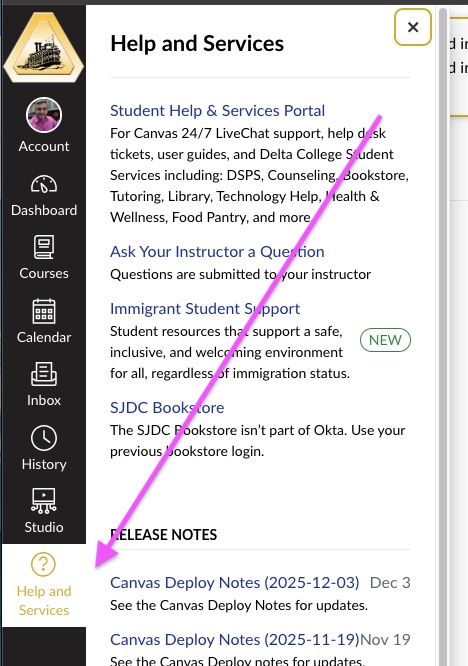
To get help once you have logged into Canvas, click the Help and Student Services (question mark) button from the black & white global navigation bar on the left.