MyDelta Dashboard Instructions
- MyDelta via MyDelta Dashboard
If you are already logged into the MyDelta dashboard, the link will take you to MyDelta, if not you will need to login. - Enter Your User Name
- Your User Name is your Delta College email address
Example:
If your Delta College email address is jsmith123@mustangs.deltacollege.edu, your username is: jsmith123 - If this is your first time logging into the MyDelta Dashboard, you will need to locate the email title "Welcome to Delta College - Important information for New Students" . This will have a link for you to log into your account for the first time and set your MyDelta Dashboard password etc.
- If you don't have this email and having issue with your password, please contact us using LiveChat during business hours for help
3. Click "Submit"
Note: If you applied to Delta College sometime before 4/22/2023 and received an email with the subject: "San Joaquin Delta College - Welcome to Okta!" email instead and never set your password by clicking the "Active Okta Account", you will need to have your MyDelta Dashboard account reset by using Live Chat during normal business hours to access MyDelta
Access MyDelta Dashboard / Okta from your browser window with the Okta Plugin.
Download the Okta Plugin
To download and install the Okta Plugin, go to Okta's Download Browser Plugin Instructions and follow the link for your preferred browser.
After downloading the browser plugin, you will be able to click on the plugin from your browser to view and sign in to any of your Delta apps.
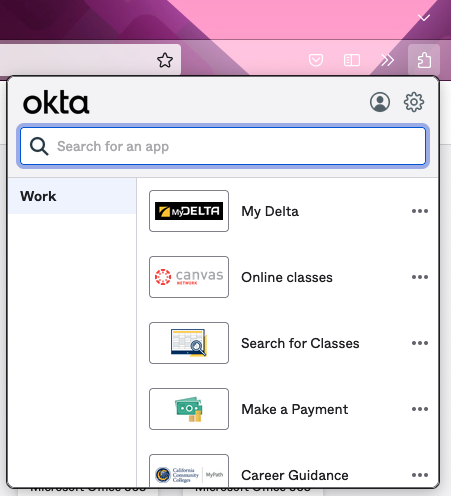
You can access your email, canvas, Box and other work apps form your MyDelta Dashboard.
- Sign in to MyDelta Dashboard with your Delta Email as your username and password
- Once logged in, your MyDelta Dashboard will be displayed with all Apps that you have available.
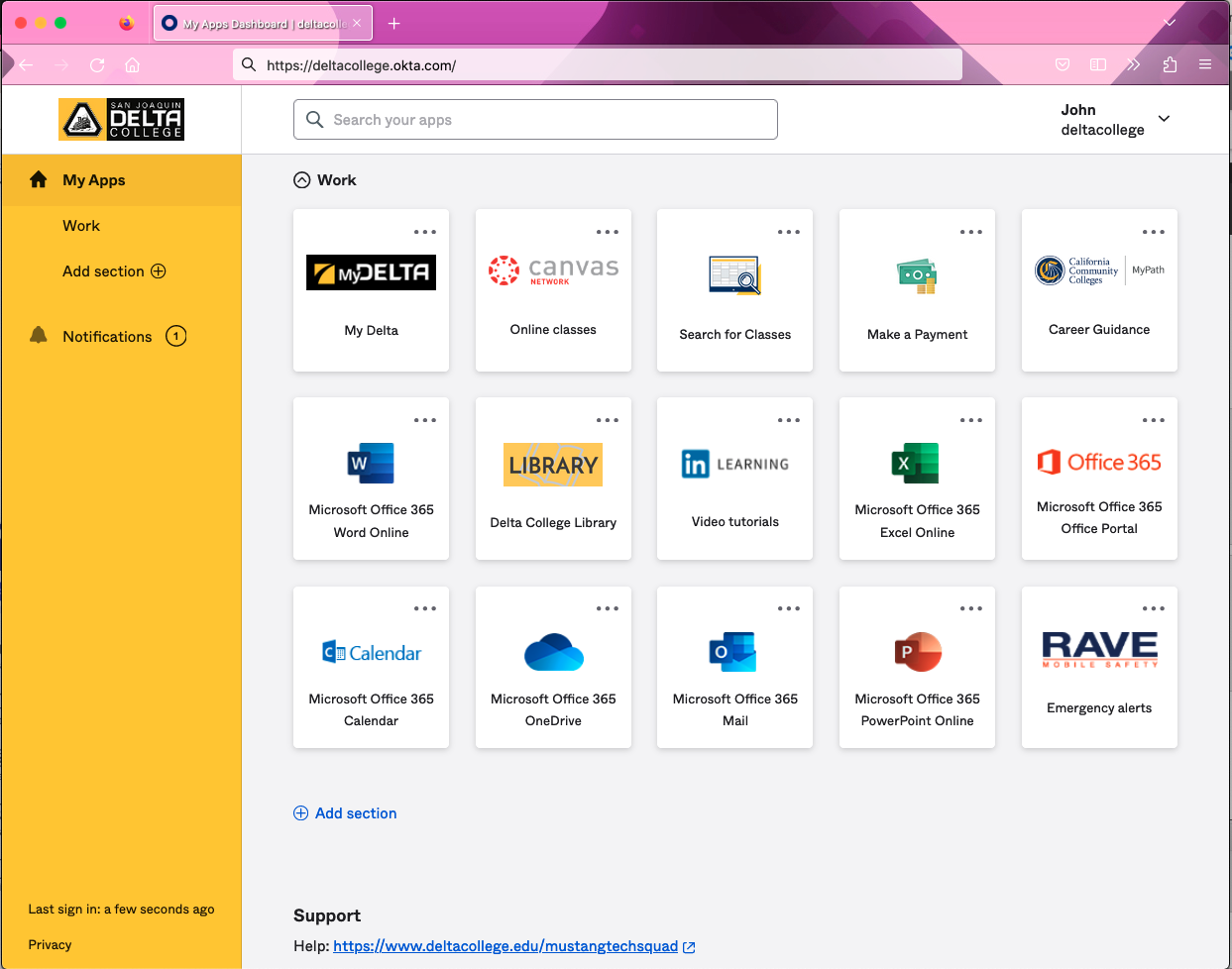
3. Click one of the app icons to begin using.
4. MyDelta Dashboard will automatically sign you in and launch the application in a new tab of your browser
5. Return to the MyDelta Dashboard tab in your browser when you are ready to start using additional apps
Be sure to setup Multifactor Authentication (MFA) before you forget your password.
Forgot Your Password
- If you forgot your password, go to the Delta MyDelta Dashboard Sign In Page
- Click the Need Help Signing In? Link below the blue sign in button.
- Click the Forgot Password Link
- Enter your Delta email address and click one of the options below. The default recovery option is Reset via Email. Be sure to have a secondary email added so that MyDelta Dashboard can send a reset link somewhere accessible. If you have set up MFA, Voice Call and SMS can be options.
Look in your inbox for the system generated email and follow the prompts.
Change Your MyDelta Dashboard Password
Follow the Change My Password instructions listed at the following link.
Multifactor Authentication helps secure your account from security attacks by adding another barrier of security to your account beyond your password. The options recommended to setup are Okta Verify, an app that uses your phone’s FaceID, fingerprint, or passcode to verify it is you that attempted to log in, Voice call, and SMS.
Okta Multifactor Authentication Guide
Password Recovery
When setting up the Multifactor Authentication by Voice Call and SMS, MyDelta Dashboard will automatically add them as a password recovery option. Please refer to the Multifactor Authentication guide on how to set these options up. In addition to using your phone to recover your password, you can also use a secondary email.
Add a Secondary Email
Secondary emails are useful in case you forget your MyDelta Dashboard password. If you forget your password, then you can request a password help link be sent to your email address. But since you're accessing your Delta's email through MyDelta Dashboard, then you won't be able to access the email that was sent. If you have provided MyDelta Dashboard with a secondary email address, then MyDelta Dashboard will also send the forgotten password email to your secondary email address — making it easy to access and reset your password!
To set a secondary email:
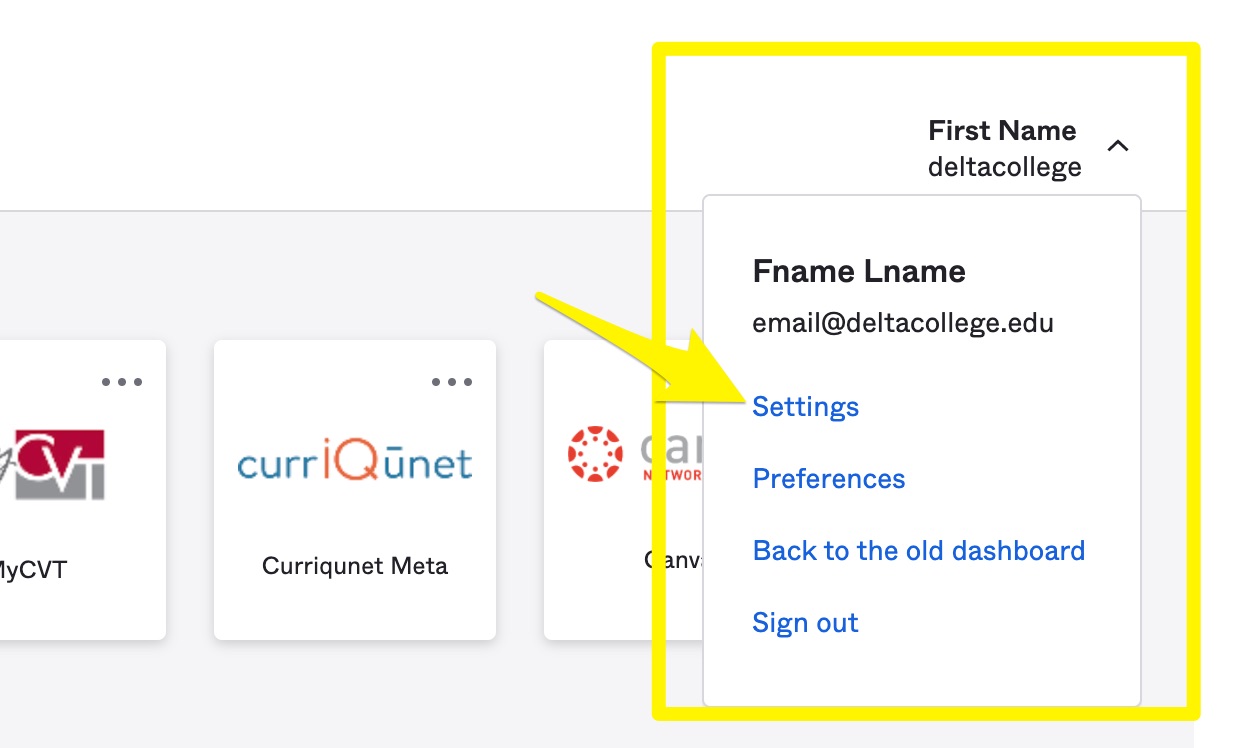
- Click on your name in the upper right corner of the navigation, and click on settings.
2. From settings, click edit next to personal information
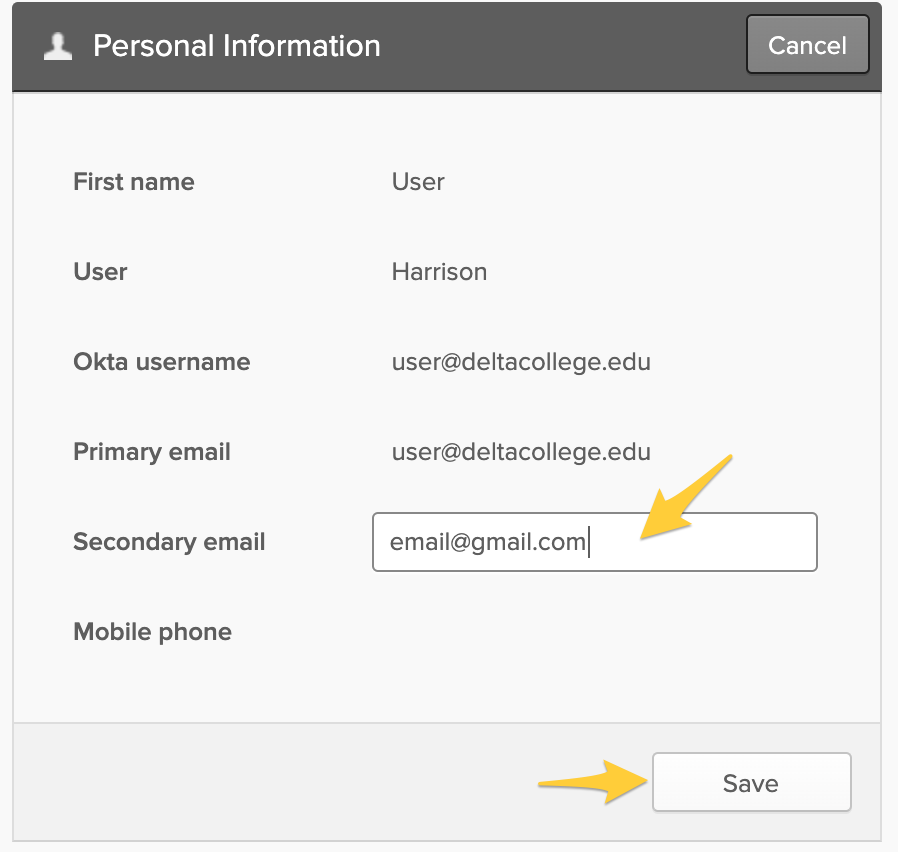
3. Enter a secondary email in the open text field and click save.