Academic Records in MyDelta shows a list of all courses including credit that you have enrolled in and transferred in at Delta College and where you can order official transcripts.
Ordering Official Transcripts Instructions
- Log in to MyDelta using MyDelta Dashboard and select MyDelta tile.
From the MyDelta homepage, click the Academic Records icon.
Image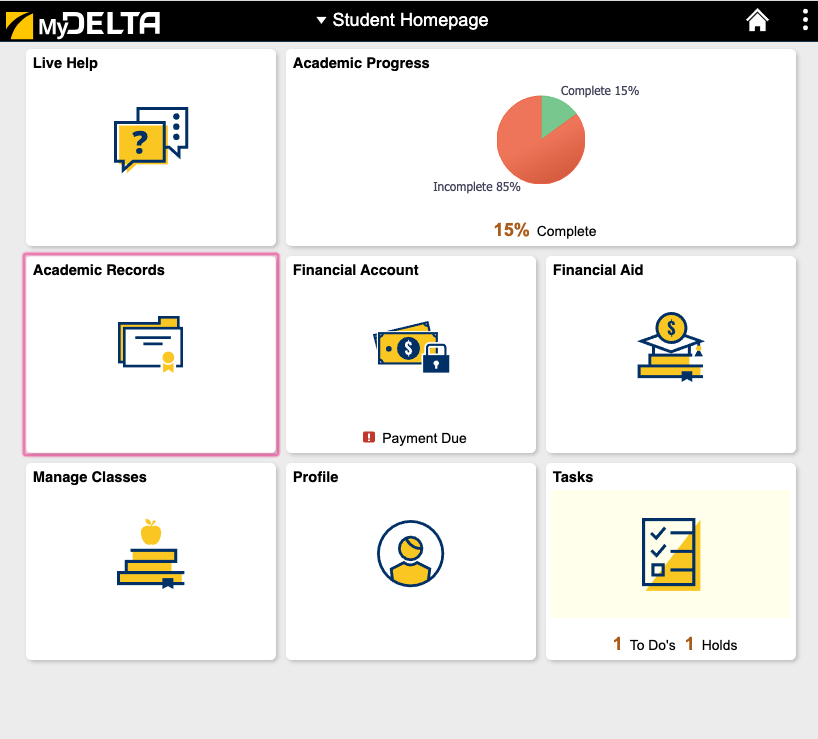
- From the left sidebar, click View Unofficial Transcripts.
- Under Report Type, select Unofficial Transcript.
- Click the Submit button.
- When the transcript has generated, depending on your browser, you will see a pop up that prompts you to open the file or another indicator that your transcript has been downloaded. It may be difficult to see the indicator, or you may have pop-ups blocked. If nothing seems to happen, you probably have pop-ups blocked. Please see How to Allow Pop-ups for instructions on allowing pop-ups on most browsers on desktop and mobile devices.
- Click on one of the column titles (i.e. "Term") to sort the list by that column.
- Click the Filter icon in the upper left corner to filter the courses by status (i.e. To only show courses that you have completed, check only Taken in the list of statuses).
Access Transcripts That Were Previously Generated
- Log in to MyDelta using MyDelta Dashboard and select MyDelta tile.
- From the MyDelta homepage, click the Academic Records icon.
- From the left sidebar, click View Unofficial Transcript.
- Click the View All Requested Report tab
- Check the box next to the report you want to view
Then click View Report.
Image